The Twirl app
One tap. Twirl does the flying.
Pick a run. Toss Twirl up. Watch what it sees. One tap brings it home and the photos are already on their way to your camera roll.
Walk through the app Join the list
The plan is iPhone first, then Android.
App screens shown are pre-production designs. Tap the phone, swipe or use the arrow keys.
Set up
Shake. Match four colours. Done.
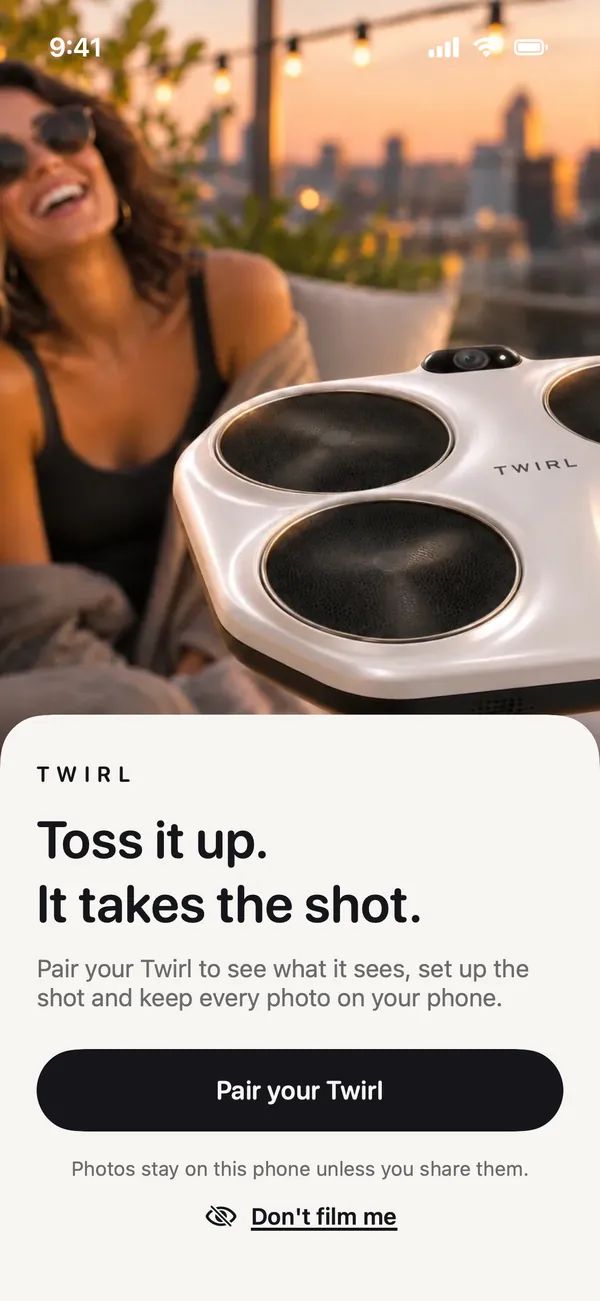
Pairing takes one shake and one look.
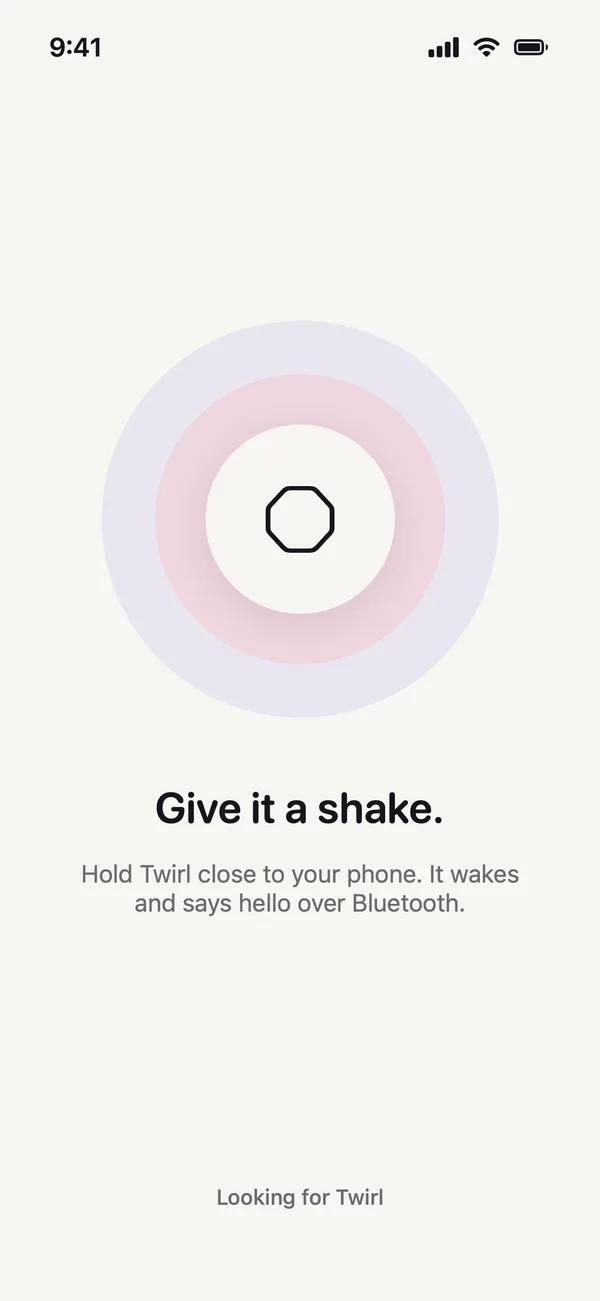
Shake Twirl near your phone
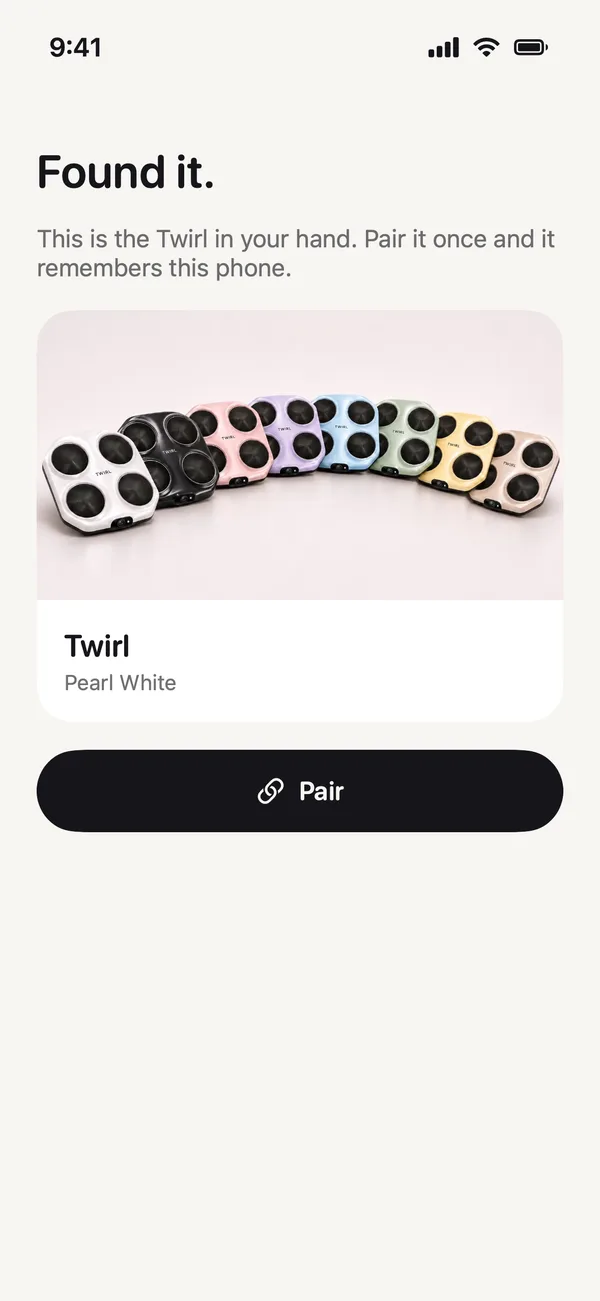
It wakes up. The app finds it and shows it by name and colour.
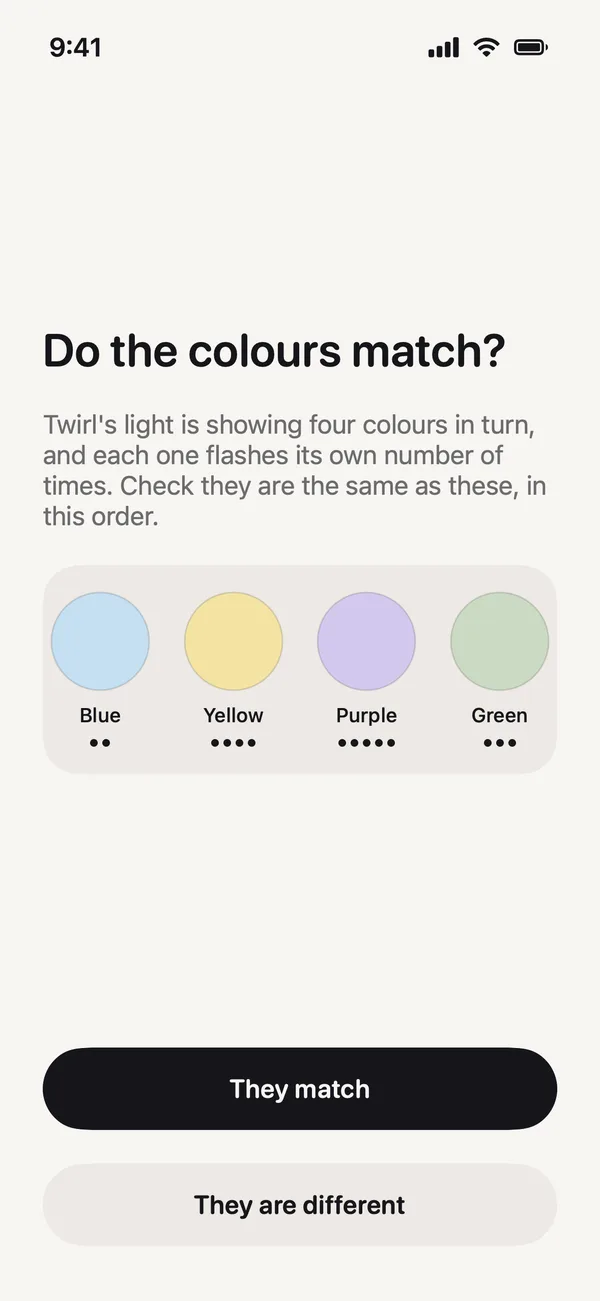
Check the colours
Twirl's light plays four colours. Your screen shows the same four. If they match, you are paired. That way only your phone can pair.
Let it join
Your phone joins Twirl's own Wi-Fi 6 network. That link carries live view and your photos.
Read one short screen
Before the first flight: where Twirl may fly, the buffer it keeps, Return and Land now.
Before the toss
Turn once. Then toss.
Before every flight, Twirl looks all the way round.
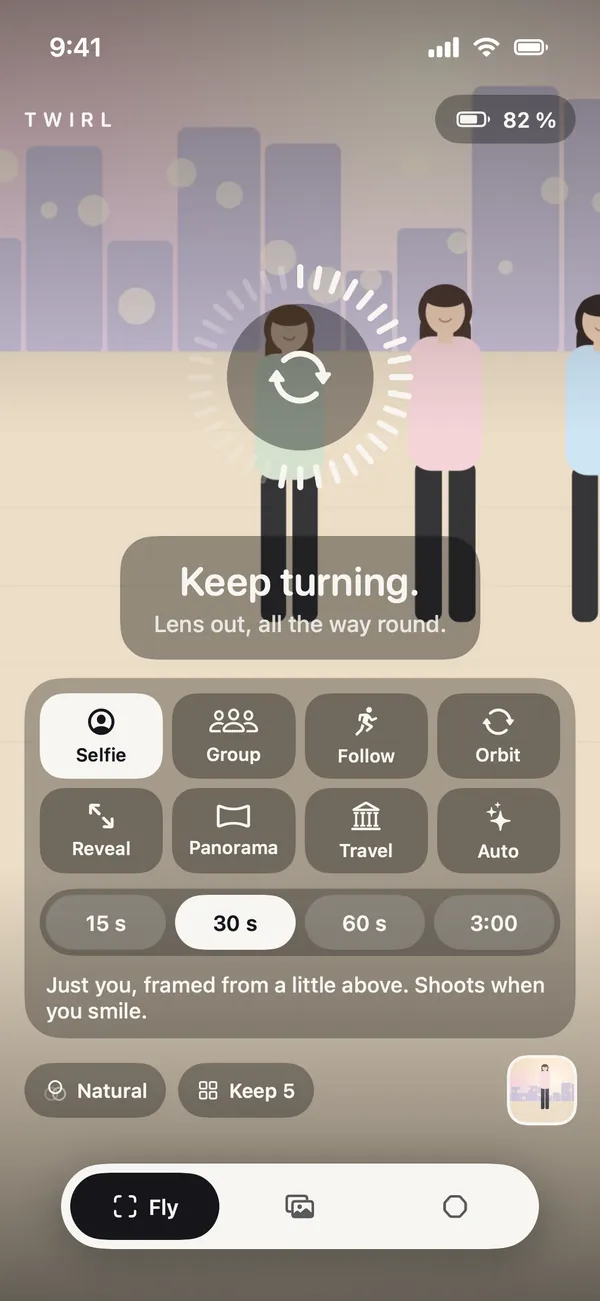
Turn once, lens out. Hold Twirl with its lens facing out and turn on the spot. It checks all the way round before it will fly.
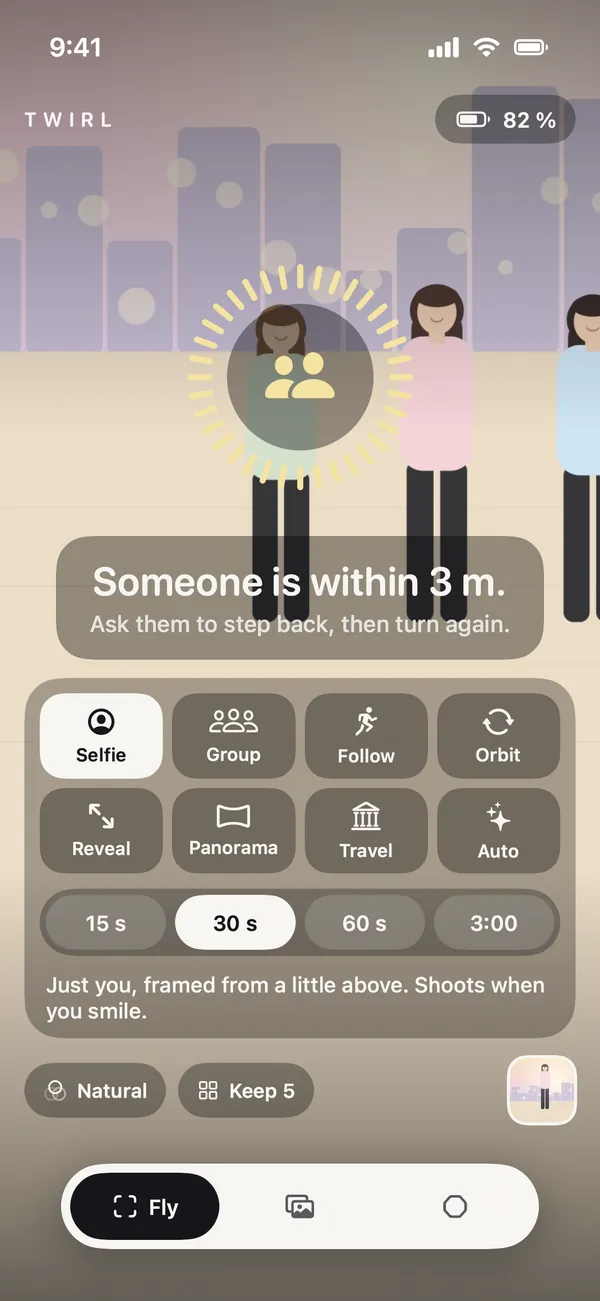
Someone close? If anyone is within 3 m, Twirl stays in your hand until they step back.
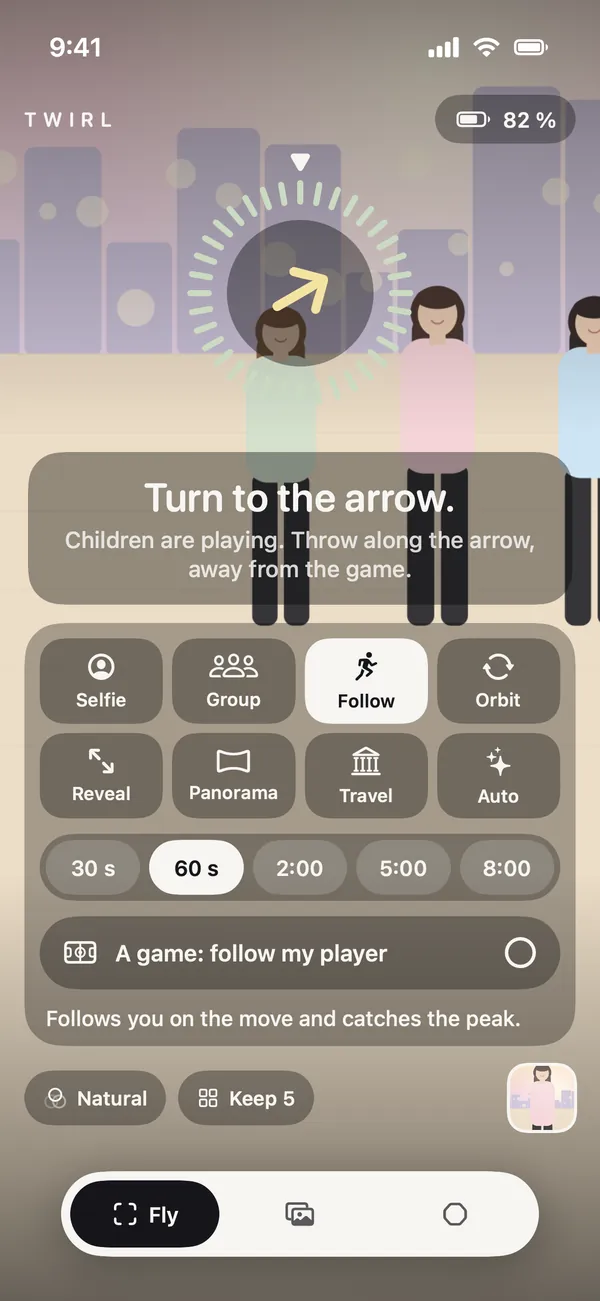
Children playing? An arrow shows which way to throw, so Twirl starts away from the game.
When all is clear, the ring fills in and the app says so. Then pick a run and toss.
Game day
Follow your player.
Tap your player, or type their number. Twirl is designed to stay high and well back, at least 6.5 m from every player, and to zoom in for the shot.
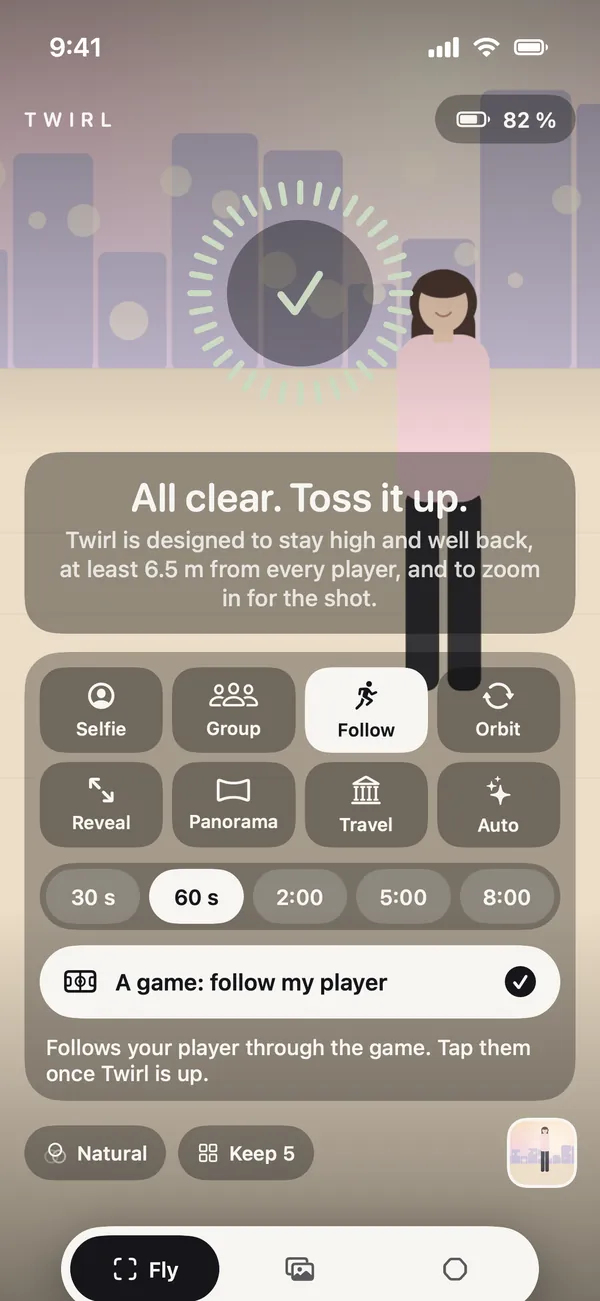
Switch on A game. Pick Follow, then turn on A game: follow my player.
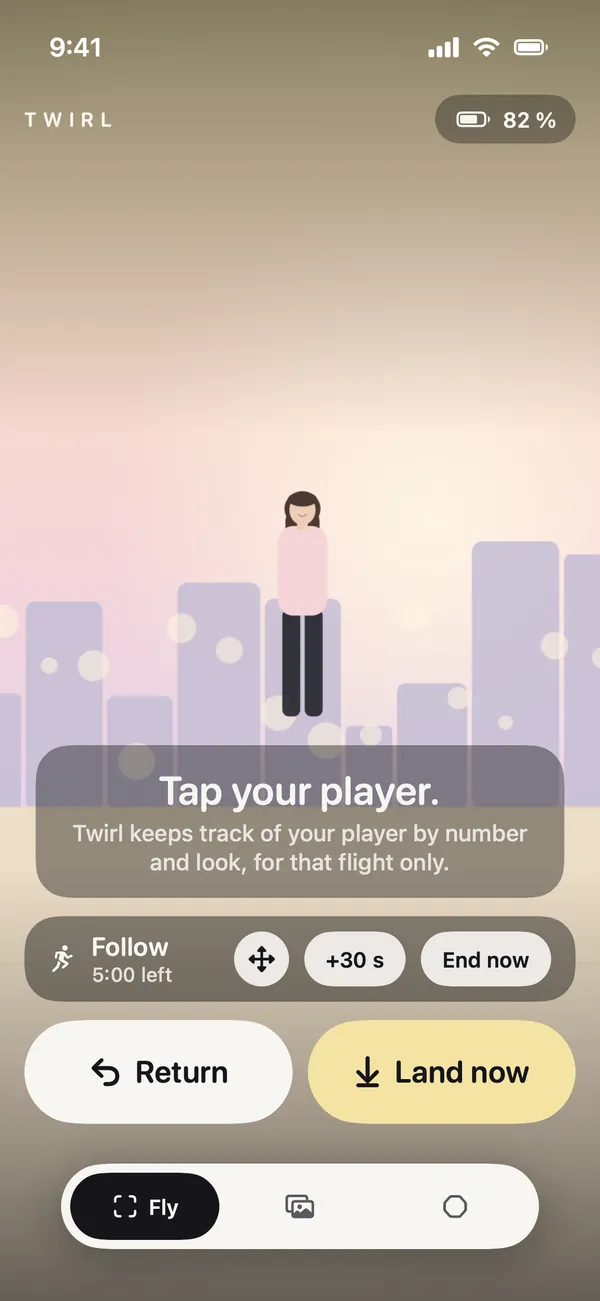
Tap your player. Twirl keeps track of your player by number and look, for that flight only.
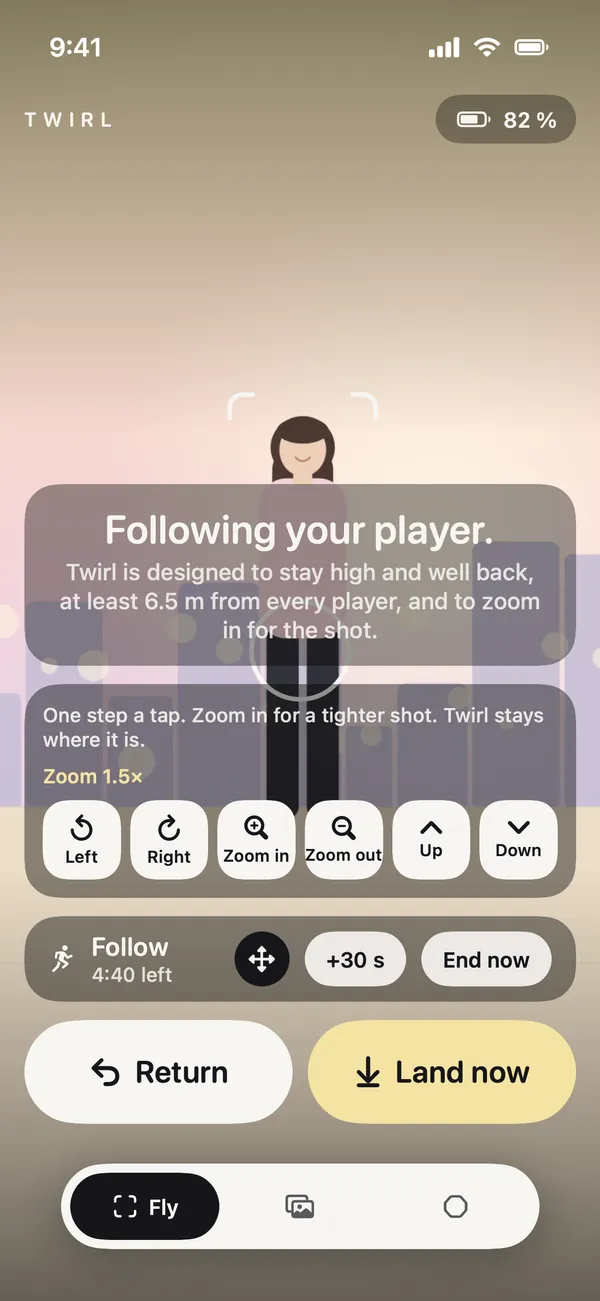
The pad zooms. In a game the Move pad zooms in and out. Twirl is designed to keep its distance.
Pick a run
Eight runs. One tap each.
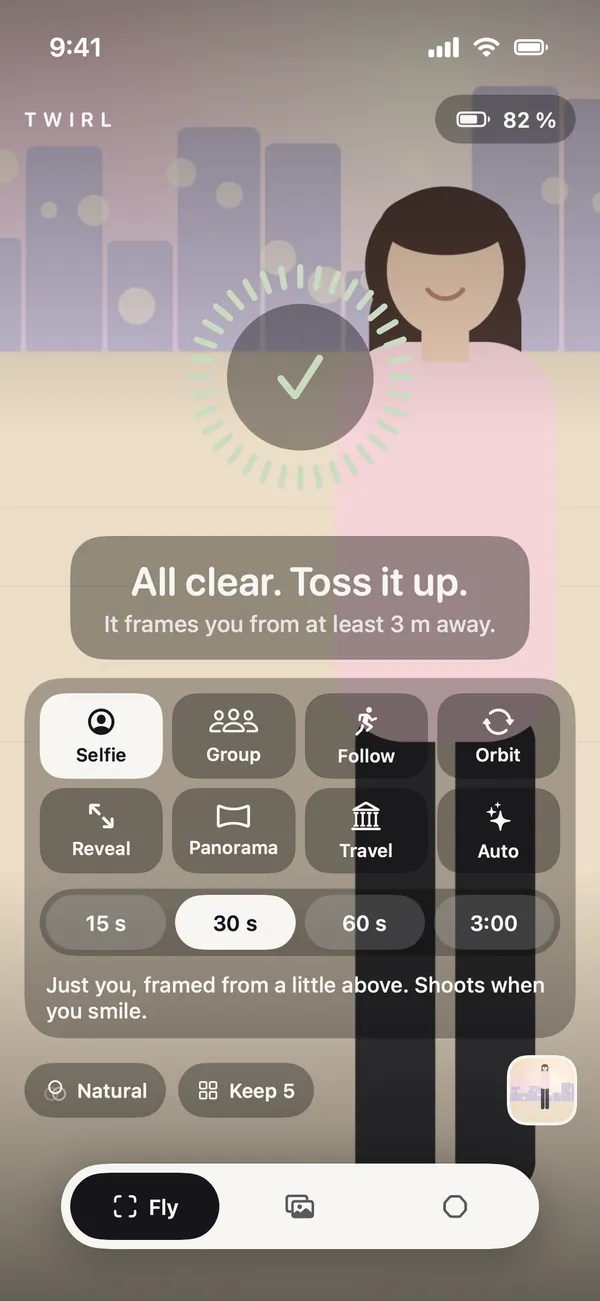
This is the Fly screen. Choose the shot you want, choose how long, then toss. Every run ends with Twirl coming home on its own.
- Selfie
- Just you, framed from a little above. Shoots when you smile.
- Group
- Backs off to fit everyone in. Waits for open eyes.
- Follow
- Follows you at an easy pace. Catches the moment.
- Orbit
- A slow circle around you, shooting as it goes.
- Reveal
- Starts on you, then pulls back and up to show the place.
- Panorama
- Climbs and turns for the view. Your phone stitches the frames.
- Travel
- You and the landmark, horizon level.
- Auto
- Reads the scene and picks the run.
Under the grid: your look and how many photos to keep. Set them once or change them every toss.
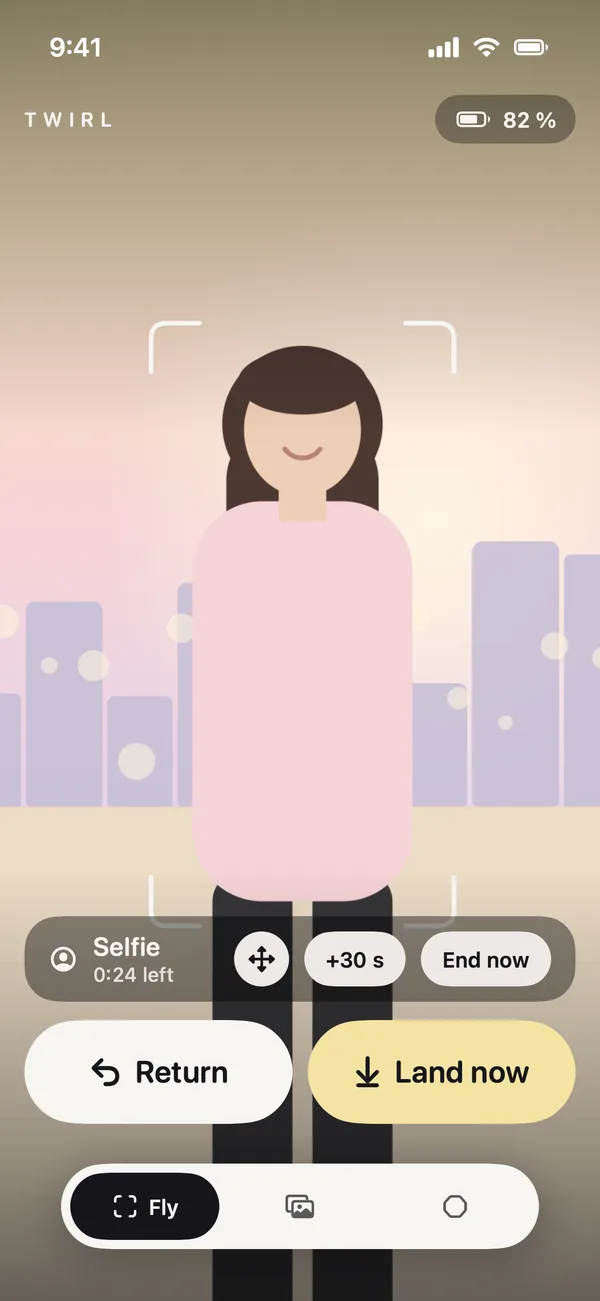
In flight
See what it sees.
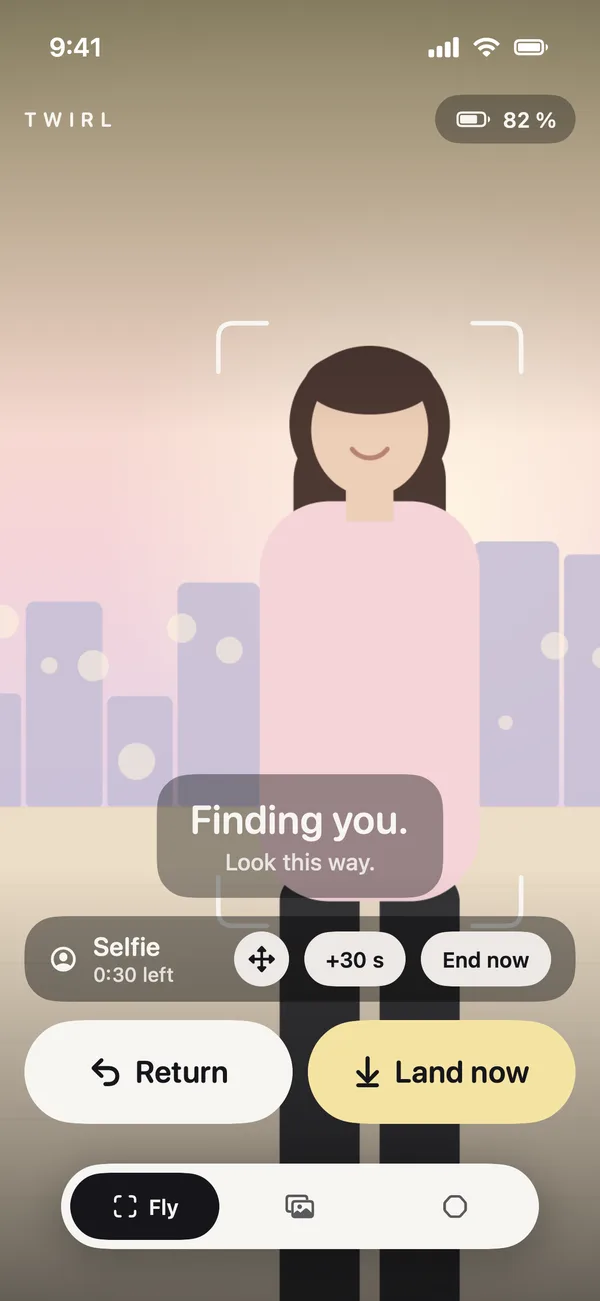
Live view starts the moment Twirl wakes. By the time it turns and finds you, you are already looking at the shot.
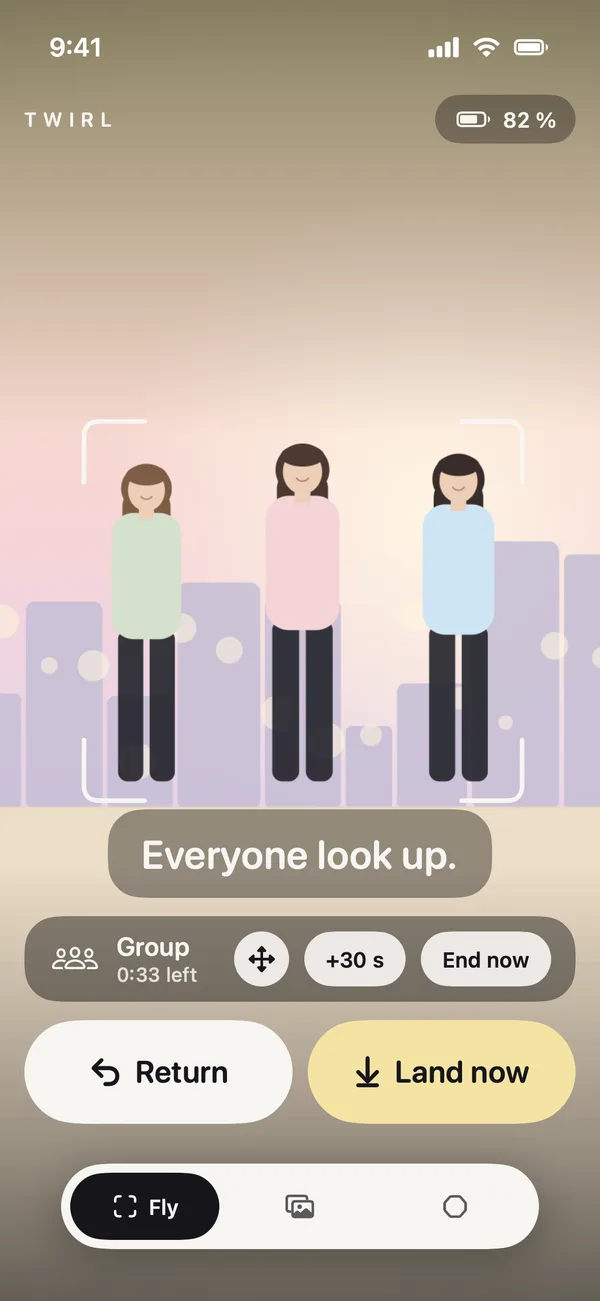
The run card counts down. Want longer? Tap +30 s. Got it already? Tap End now.
Twirl tells you what it is waiting for. In a Group run that might be "Everyone look up."
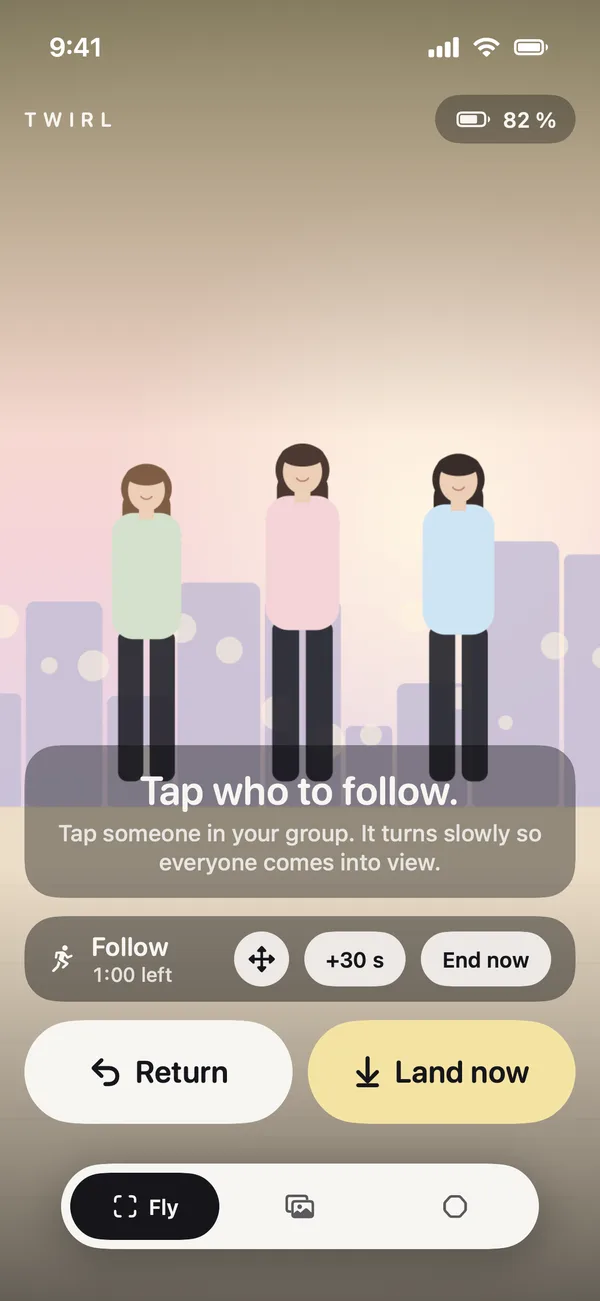
In Follow, tap who to follow right in live view. It turns slowly so everyone comes into view while you choose.
All the while it is built to keep at least 3 m from anyone, in any direction, and never overhead.
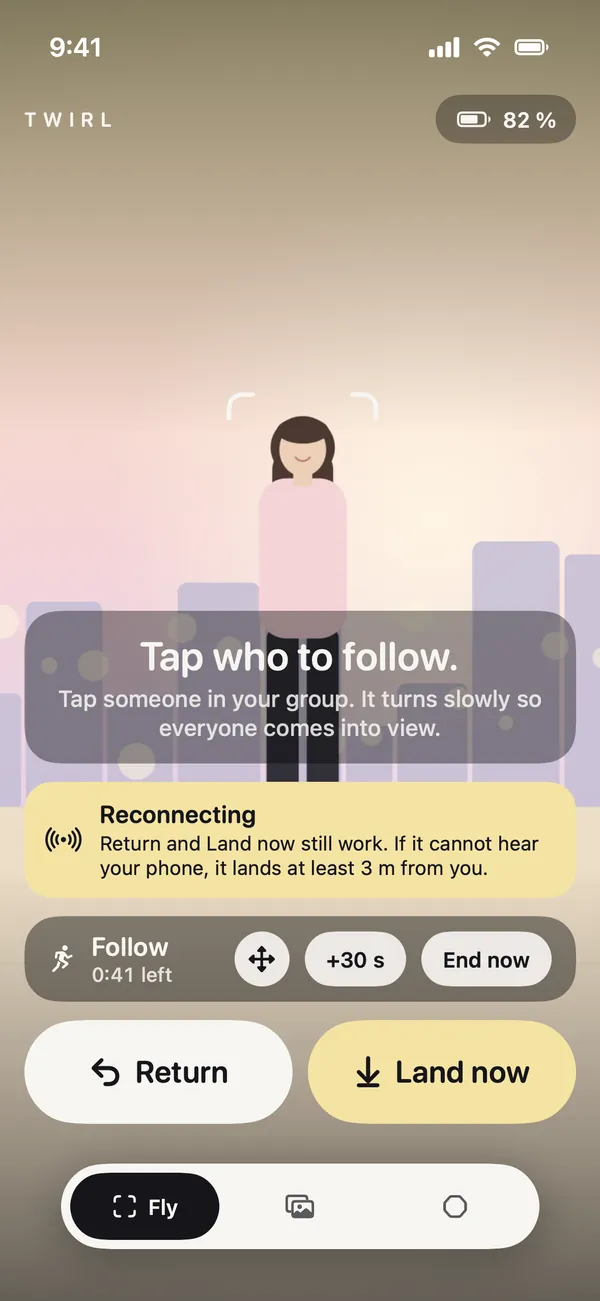
Link drops. Buttons stay.
If the screen says Reconnecting, Return and Land now still work. If the link is gone for good, Twirl flies back to where your phone last was and lands at least 3 m from you.
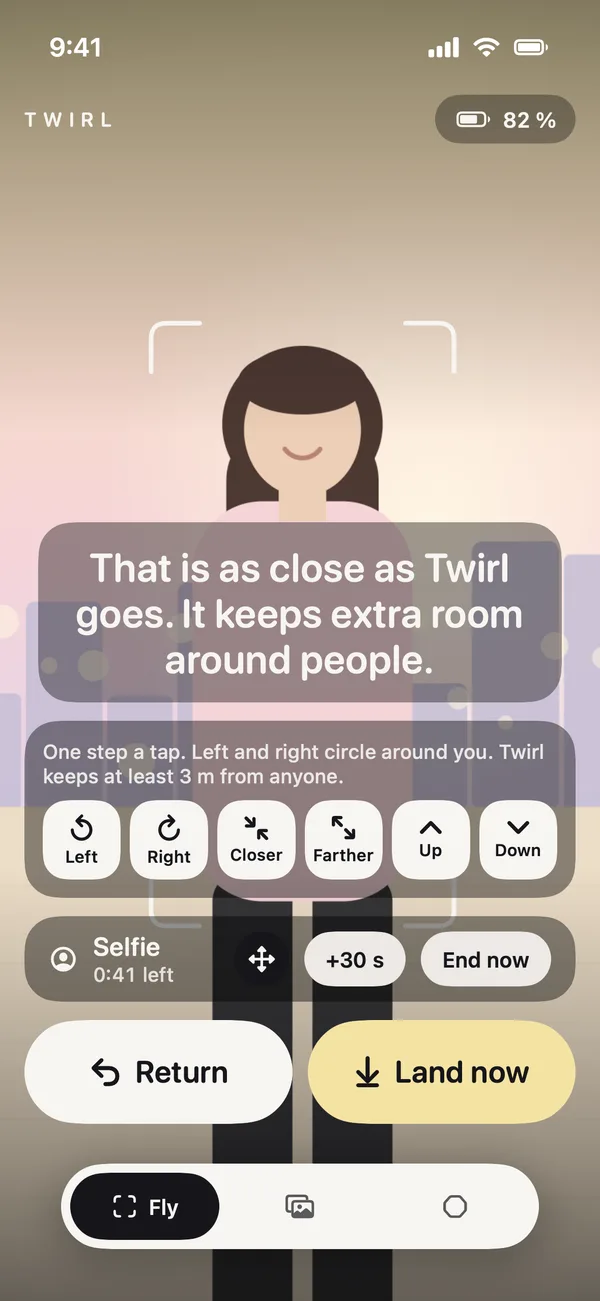
Move
Ask for a new frame.
Ask for a wider or tighter shot, one step at a time. Twirl decides whether it has room, and never closes the gap.
Six one-tap steps: circle left or right around you, come closer, back off, go up, come down.
Twirl keeps its own limits on every step. If a step would take it nearer than it allows, it stays put and tells you why: "That is as close as Twirl goes. It keeps extra room around people."
Return
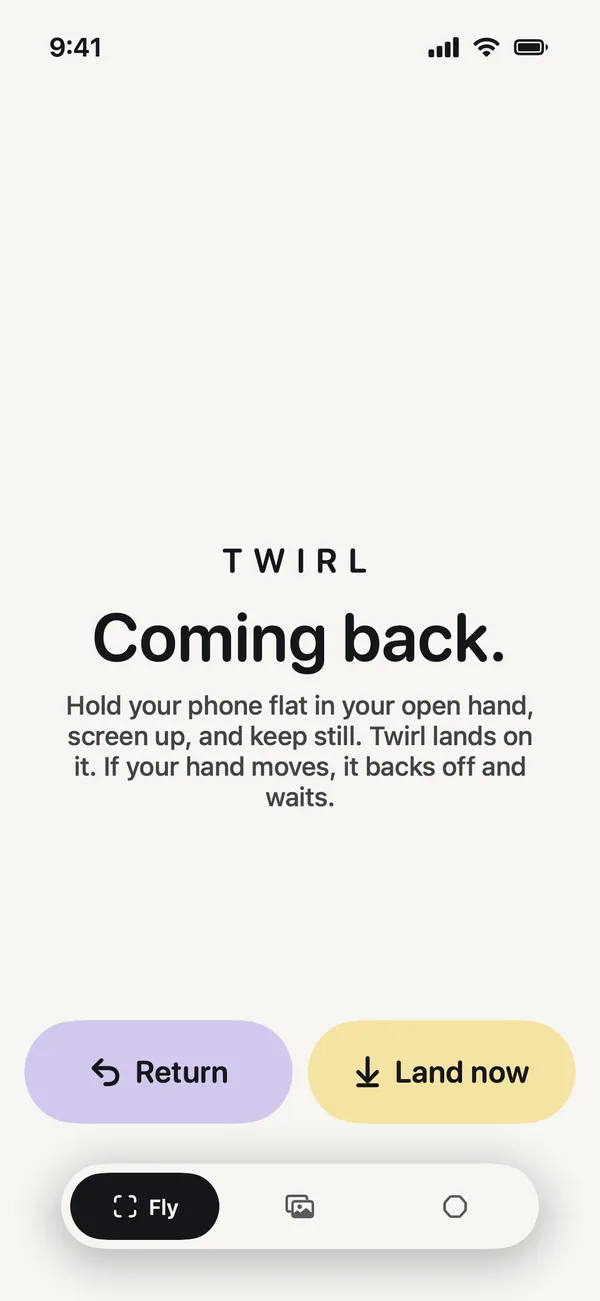
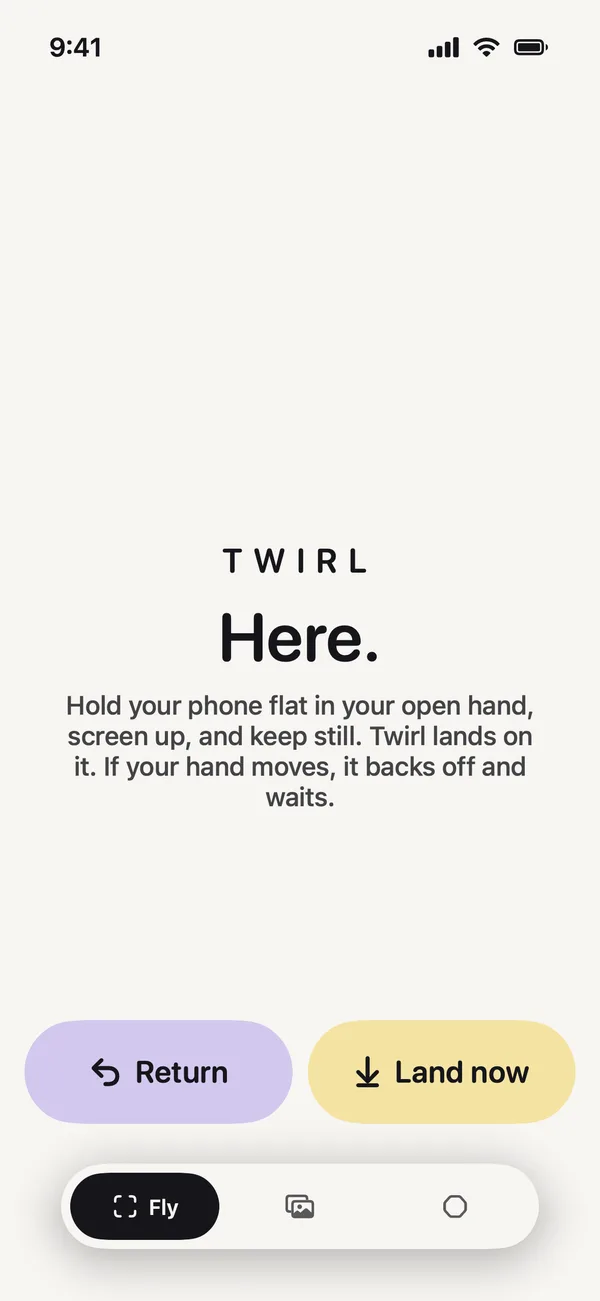
Tap Return. Hold out your phone.
One tap. No confirm. Twirl flies back to your phone.
Your screen lights up from the start of the return, so Twirl can find your phone on the way back. Then it turns pearl and says one word: "Here." Hold the phone flat in your open hand and Twirl lands on it.
Props stop. Photos start crossing to your phone before you have put it away.
You do not have to tap anything, of course. Every run ends with Twirl coming home on its own.
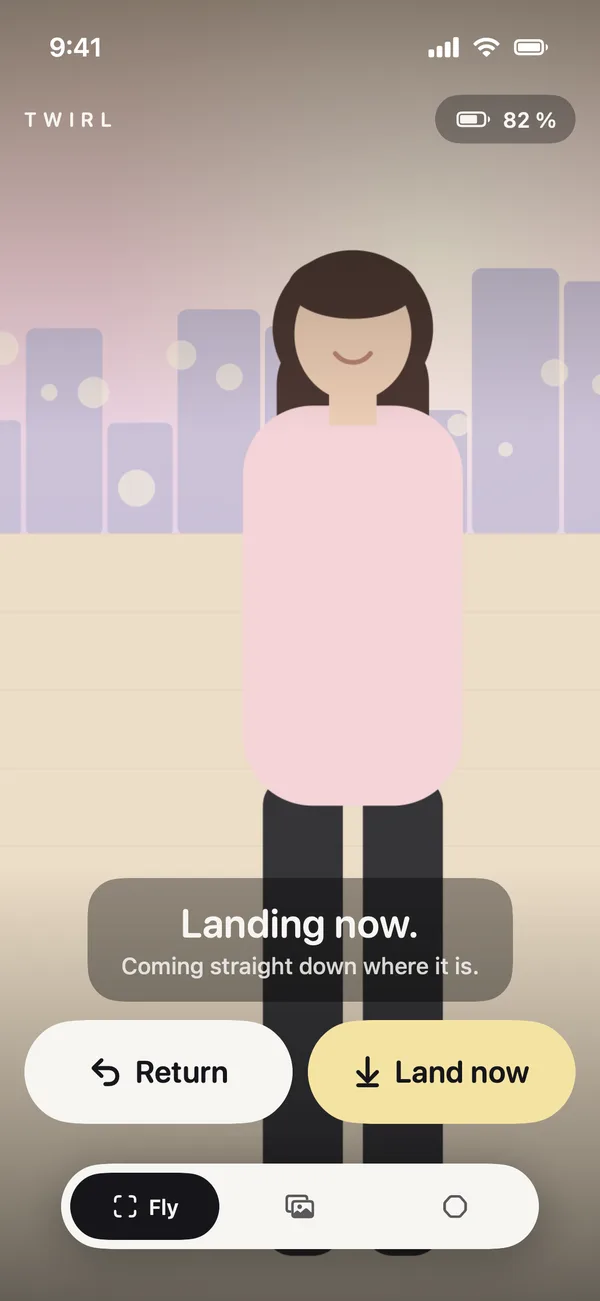
Land now
Down. Right here. Right now.
Land now sets Twirl straight down where it is.
One tap, no confirm. The command goes out over Wi-Fi and Bluetooth at once.
Return and Land now outrank everything else Twirl is doing. Mid-orbit, mid-burst, mid-anything.
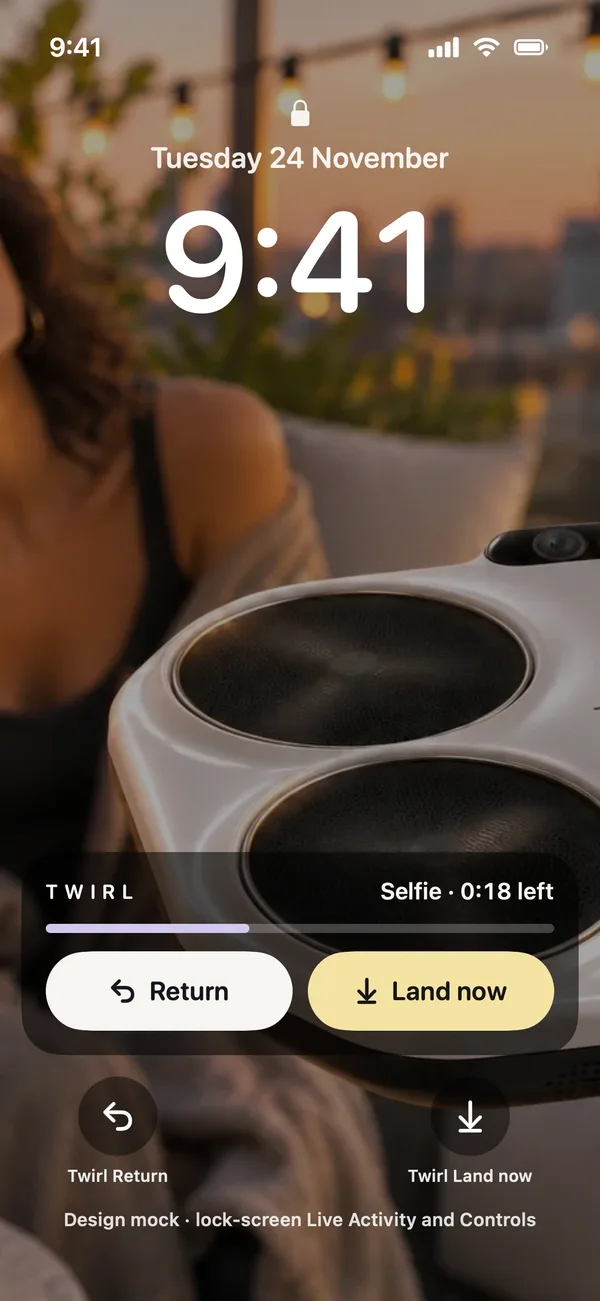
Design mock
Lock screen
Phone locked. Still in charge.
While a run is in the air, your lock screen shows the time left with Return and Land now beside it.
Glance, tap, done. The phone can go back in your pocket and the moment can carry on.
Gallery
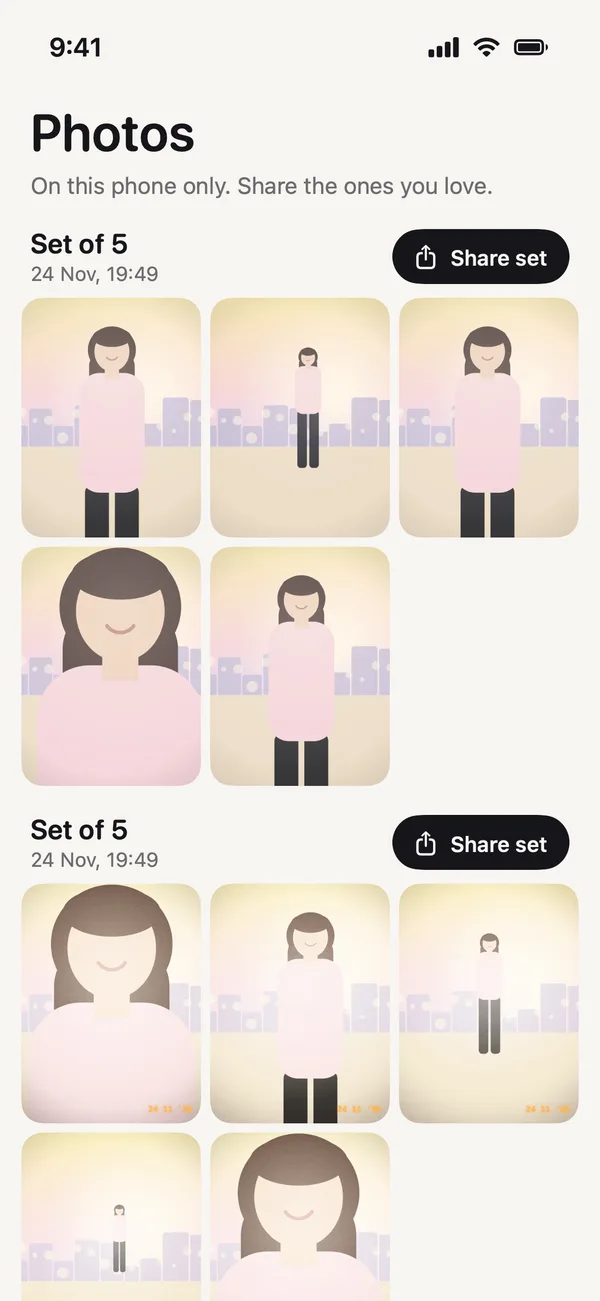
Every run comes back as a set.
Twirl shoots short bursts and keeps the best 3, 5 or 10 frames. They arrive together, in your camera roll, ready to post as one.
Share set
One button. It opens your phone's own share sheet.
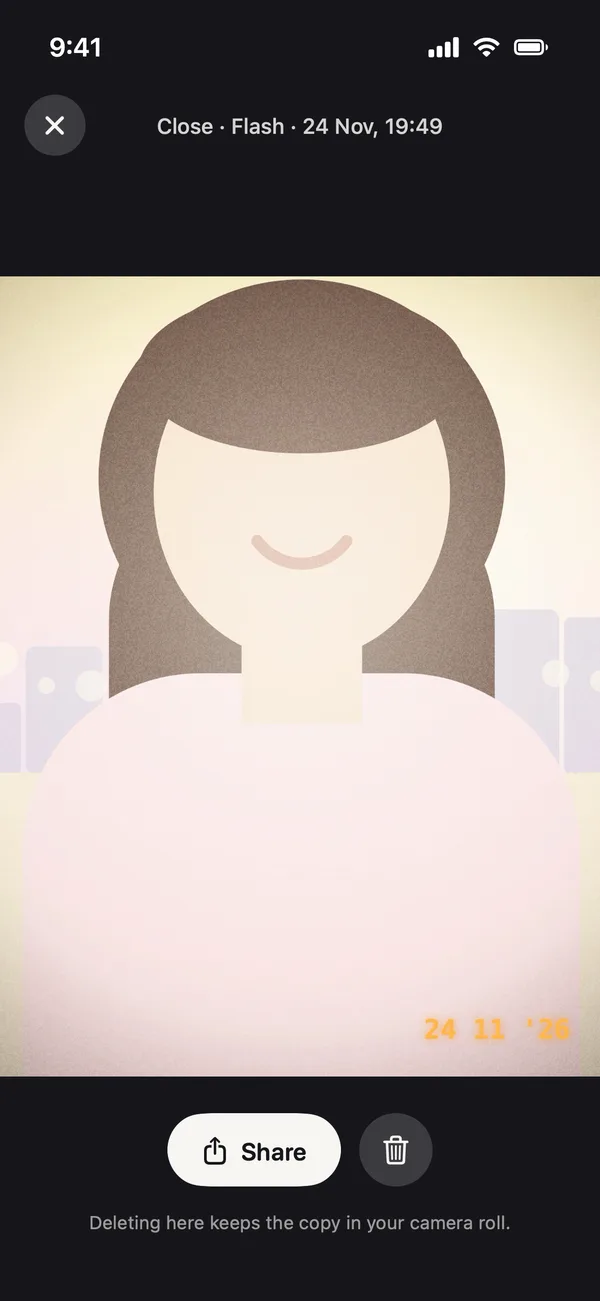
Looks
Natural, Flash or Grain, added on your phone. The original is kept.
Date stamp
A warm little date in the corner, if you like that sort of thing.
Shape
3:4 for feeds. 9:16 for stories. 4:3 for wide.
Sharing
Share it your way.
Share with friends, or with people nearby who said yes.
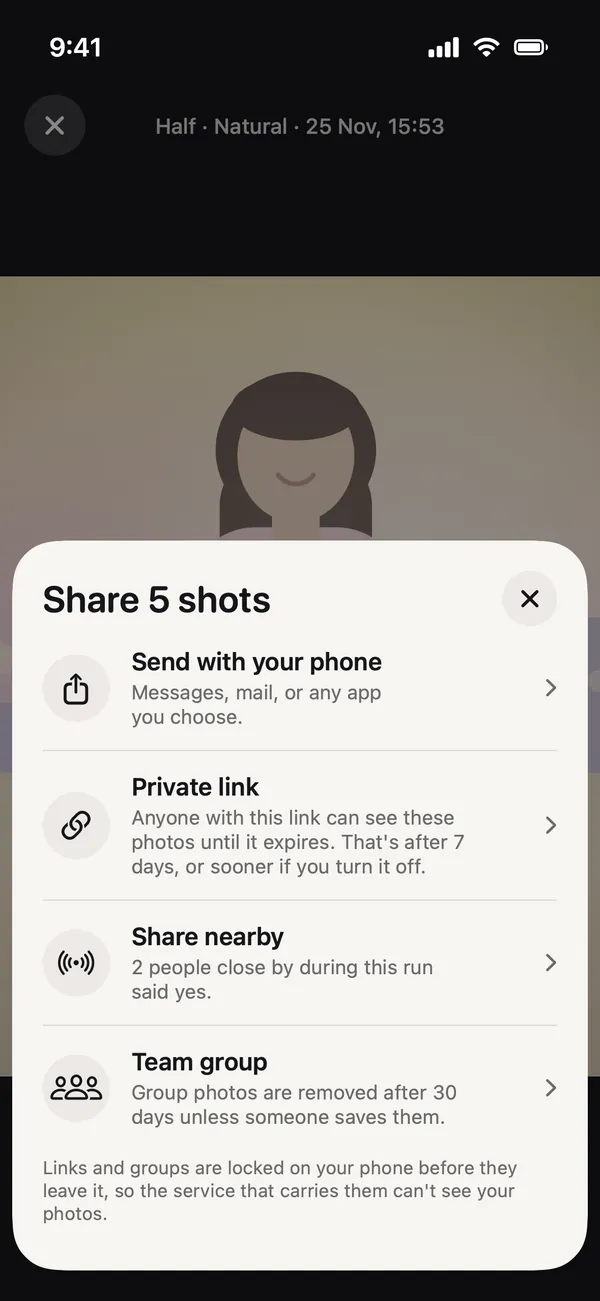
Share any shot. With your phone, a private link, people nearby who said yes, or your team’s group.
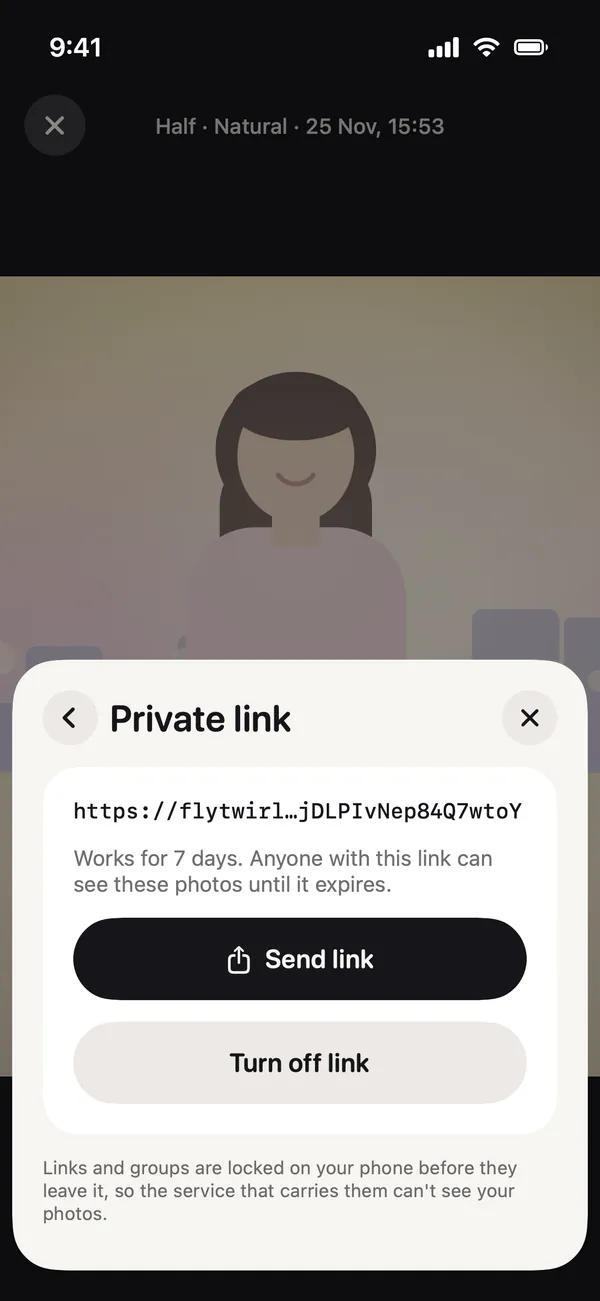
Private links. Locked on your phone, good for 7 days at most, and you can turn them off for everyone.
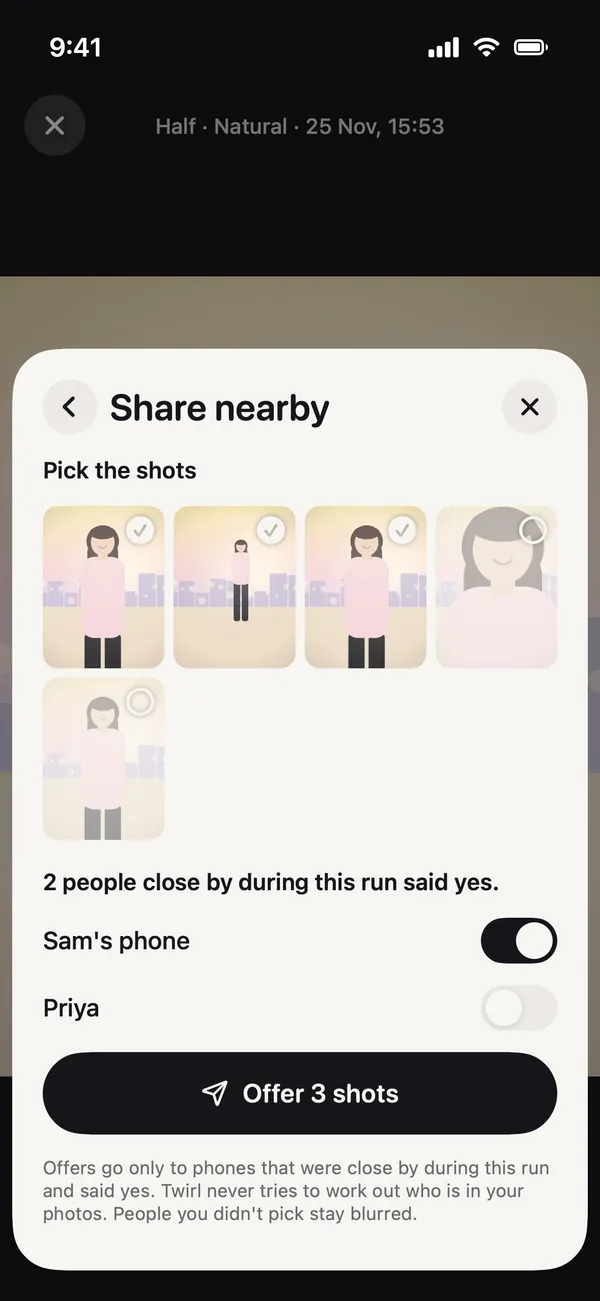
Pick the shots and the people. Offers go only to phones that were close by during the run and said yes.
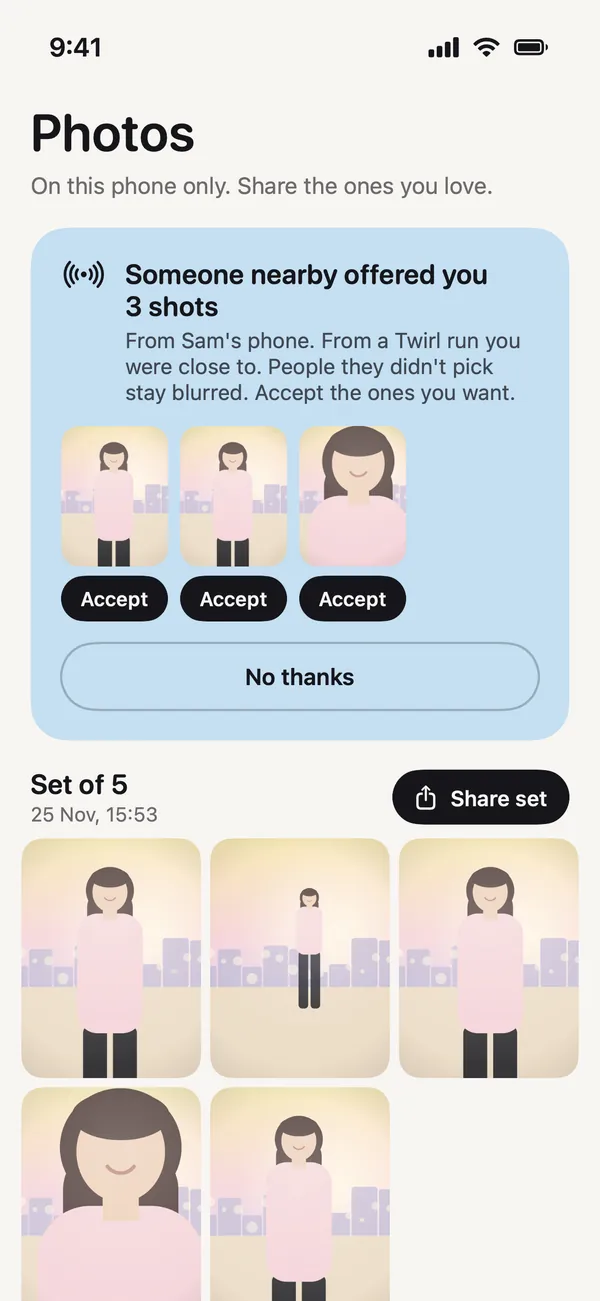
You accept each one. Nearby shots arrive only if you switched them on.
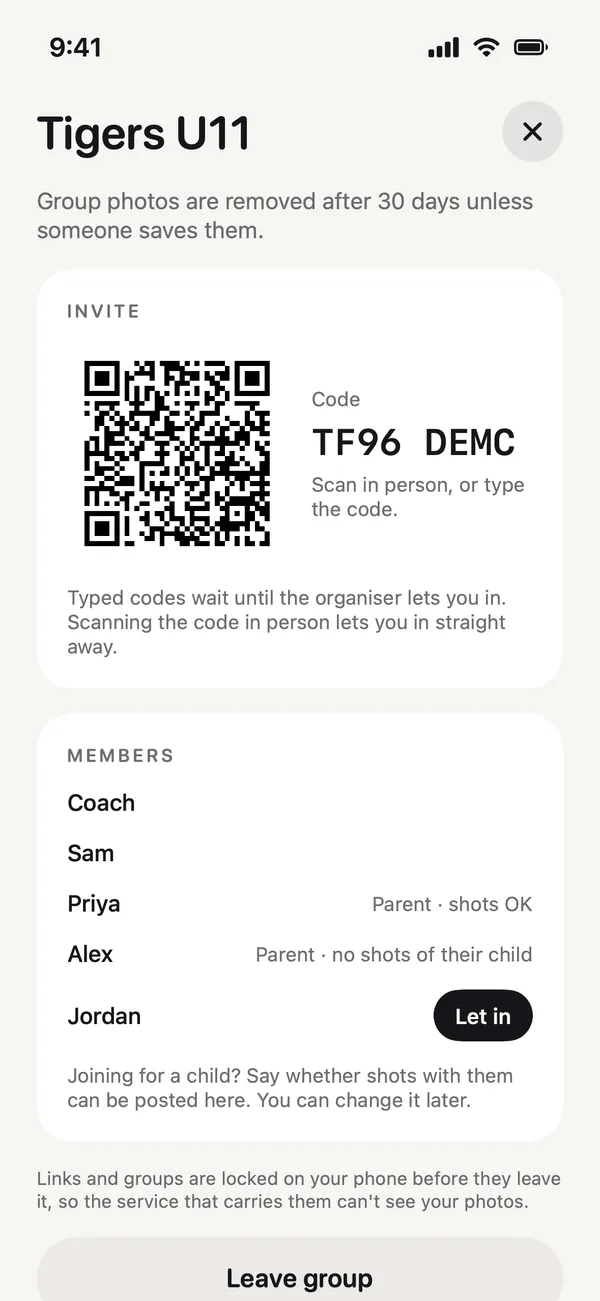
Team groups. Join by QR code or typed code. Group photos are removed after 30 days unless someone saves them.
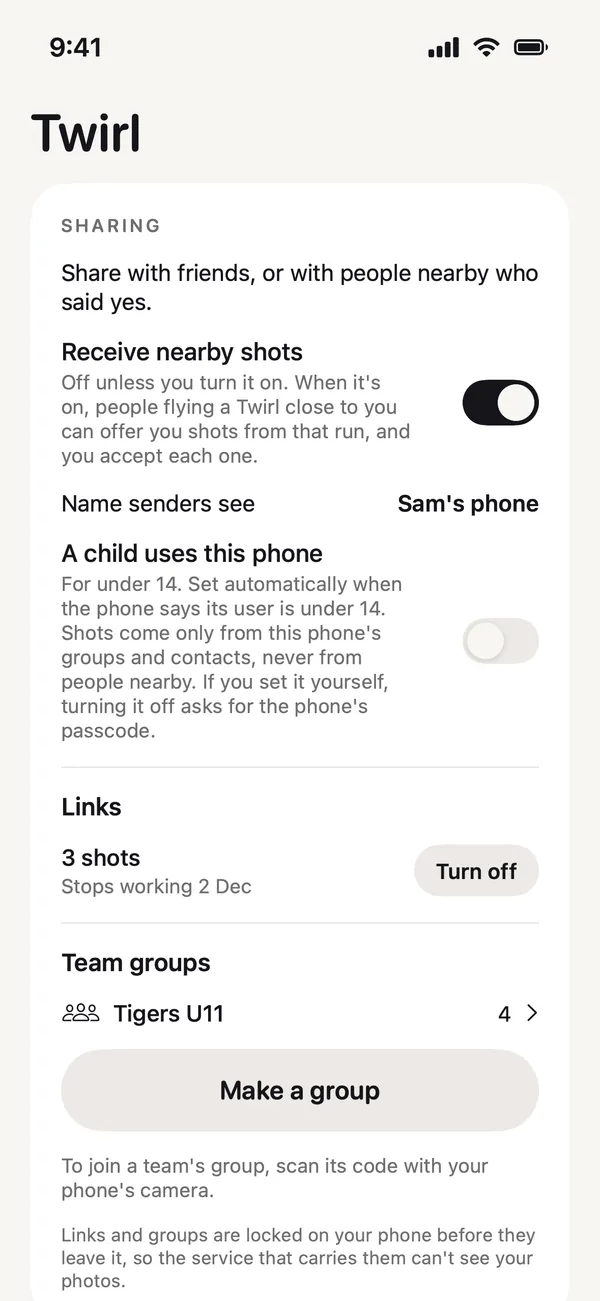
Off until you turn it on. Receive nearby shots is off unless you switch it on.
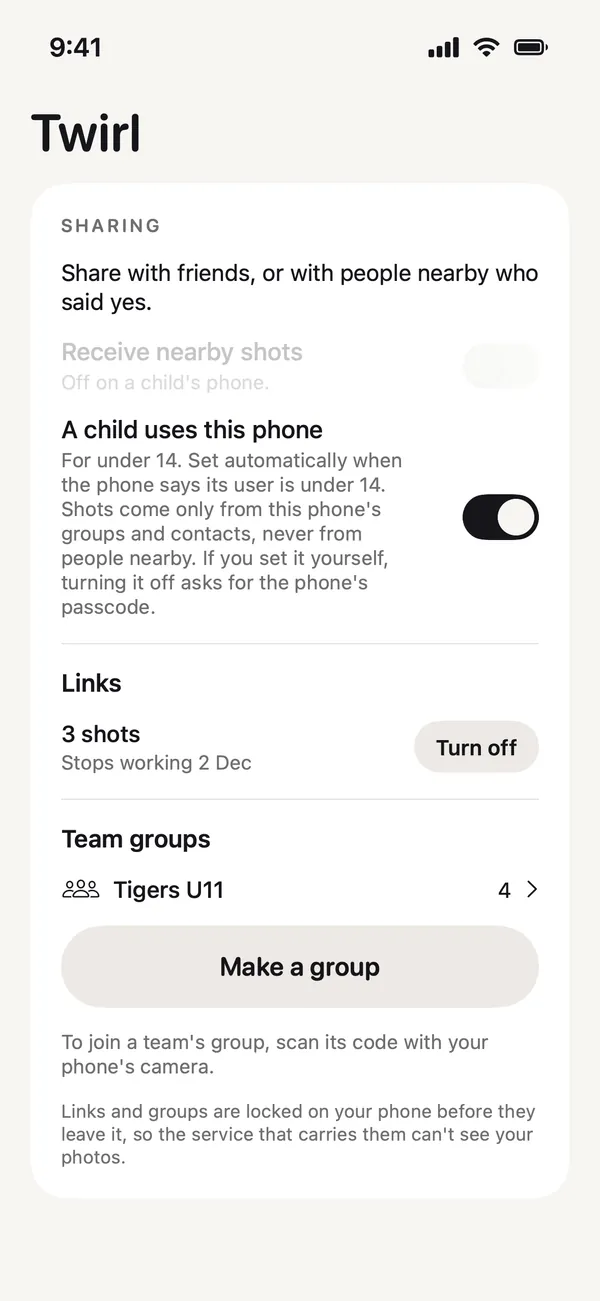
A child’s phone. Shots come only from its groups and contacts, never from people nearby.
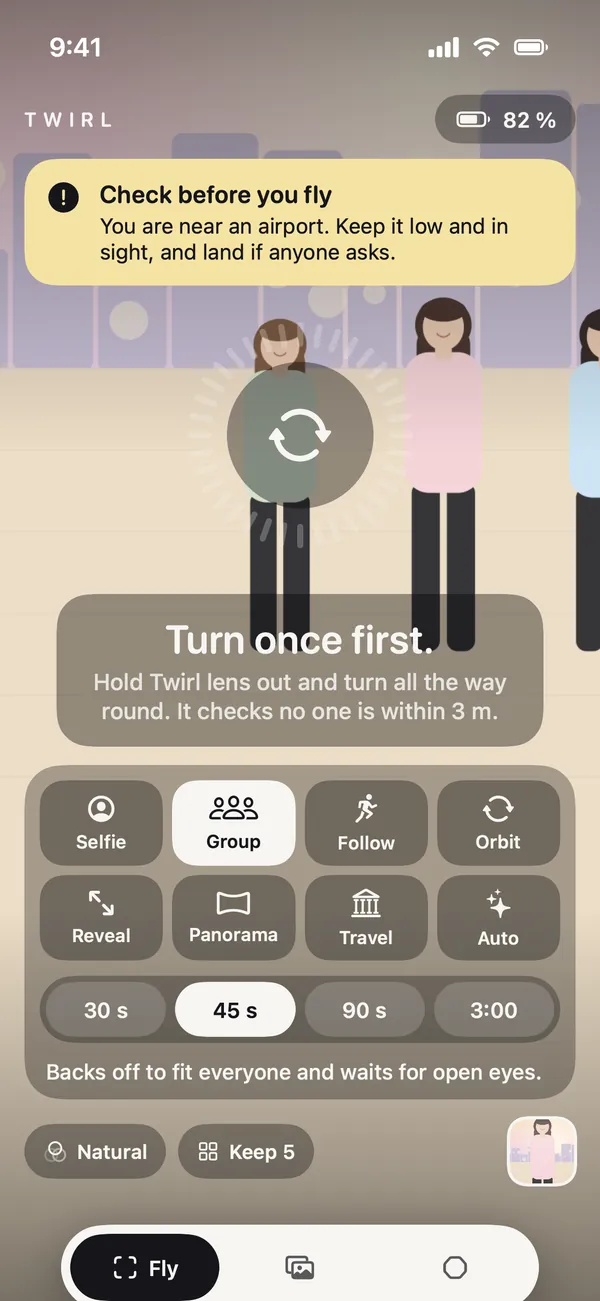
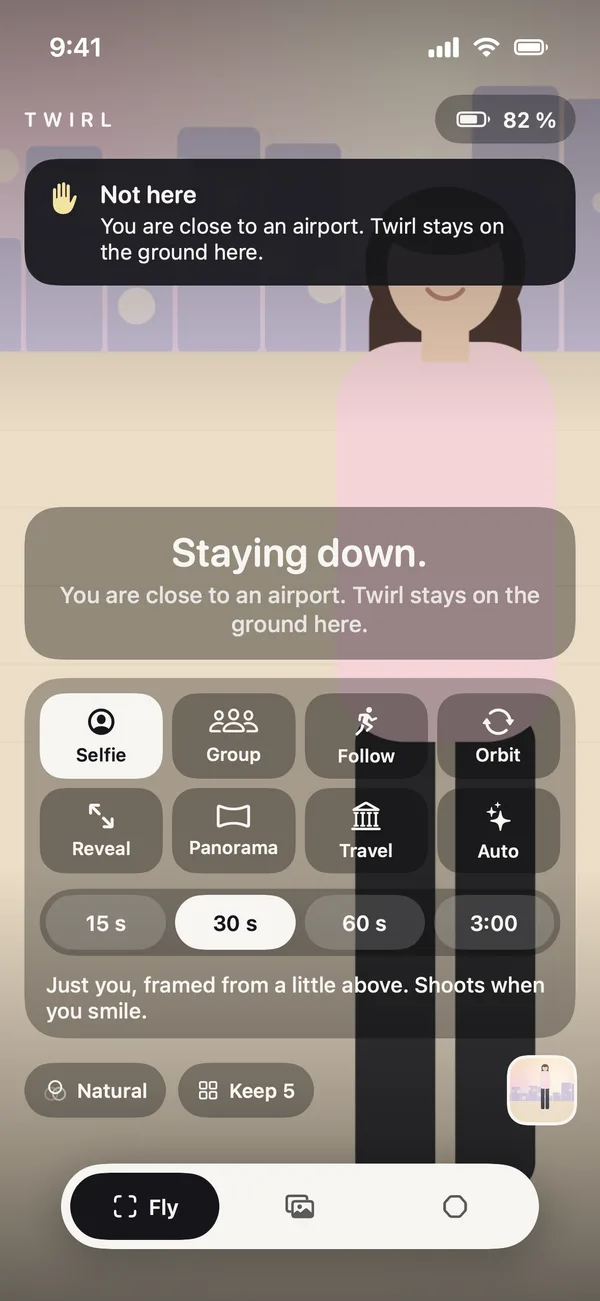
Where it flies
It checks the map so you can watch the sunset.
Before each flight the app checks for restricted areas, then gives the go-ahead.
Near a restricted area, such as an airport or a national park, it tells you: "Keep it low and in sight."
Inside one, Twirl stays on the ground and the app says why.
Canada first. The United States later, once US availability is confirmed. Drone rules differ by country and place, so check your local drone rules.
Settings
Make it yours. All of it.
The Twirl tab holds the battery, every setting and updates. Here is the full list.
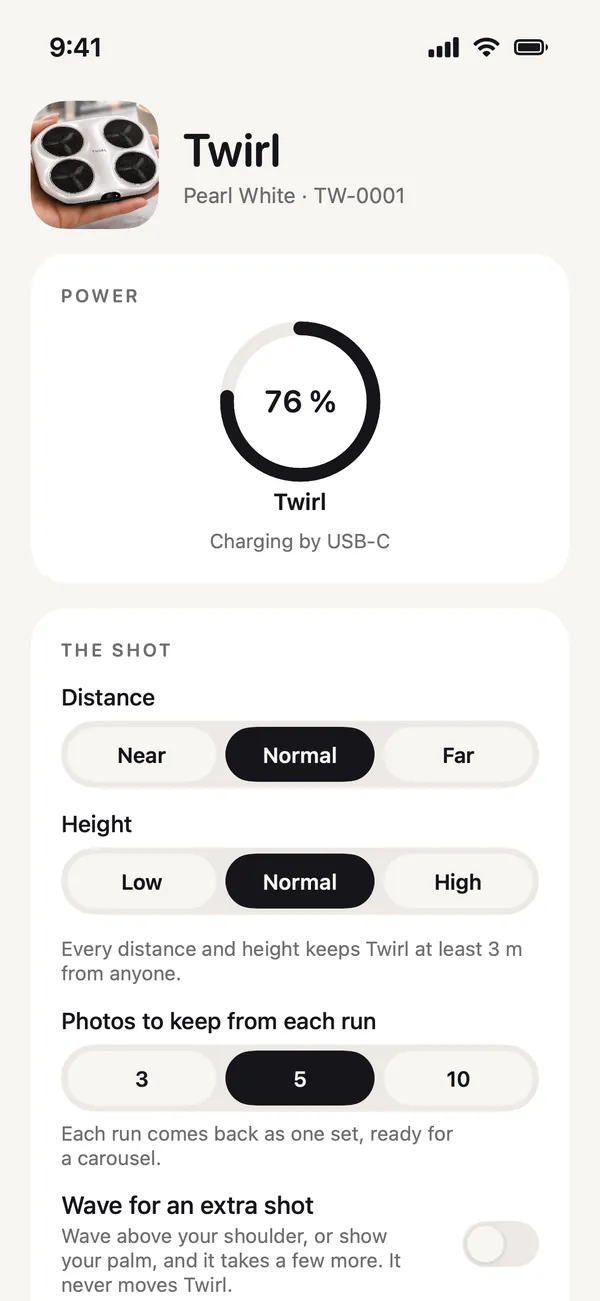
- Distance
- Near · Normal · Far. Near is still built to keep at least 3 m from anyone.
- Height
- Low · Normal · High. The buffer is the same on each preset.
- Photos to keep
- 3 · 5 · 10 from each run
- Look
- Natural · Flash · Grain
- Date stamp
- On · Off
- Shape
- 3:4 · 9:16 · 4:3
- Blur adults you didn’t pick
- On to start. Children stay blurred unless you vouch for them.
- People you didn’t pick
- Blur · Remove. Remove works on your phone, never in a cloud. If it can’t do it cleanly, they stay blurred.
- Don’t film me
- Off to start
- Tell me about Twirls nearby
- Off to start
- Receive nearby shots
- Off to start. Shots arrive only from people who were close by and said yes, and you accept each one.
- A child uses this phone
- Set automatically when the phone says its user is under 14. Shots come only from groups and contacts, never from people nearby.
- Wave for an extra shot
- Off to start. A wave adds a short burst and nothing else.
- Add location to photos
- Off to start
- Keep a copy in the app
- On to start
- Send crash reports
- Off to start. Never with photos or location.
Privacy
No account. No feed.
Your photos go to your camera roll, and nothing is shared unless you choose to.
Your camera roll
No sign-up. Once your phone has a photo, Twirl deletes its copy.
Add only
The app can add photos to your library. It does not read your others.
Location, for flying
Location is used for the zone check and to bring Twirl back to your phone. It stays off your photos unless you turn it on.
Faces, for framing only
Twirl finds faces on its own chip, only to frame the shot. No face library. It remembers who you are for one flight only.
People you didn’t pick
Twirl blurs people you didn’t pick, on the drone, before the photo reaches your phone.
Ask not to be filmed
With Don’t film me, anyone nearby can ask Twirls not to film them, with or without a Twirl of their own. It works while the owner’s phone can hear theirs.
Children
Children stay blurred unless the owner vouches for them, for that flight only.
Remove, on your phone
Remove is designed to fill in people you didn’t pick, on your phone, never in a cloud. Anything it can’t do cleanly stays blurred, and the original is kept.
You share
Through your phone’s own share sheet, a private link or to people nearby who said yes. What you share is locked on your phone first, so we can’t see it.
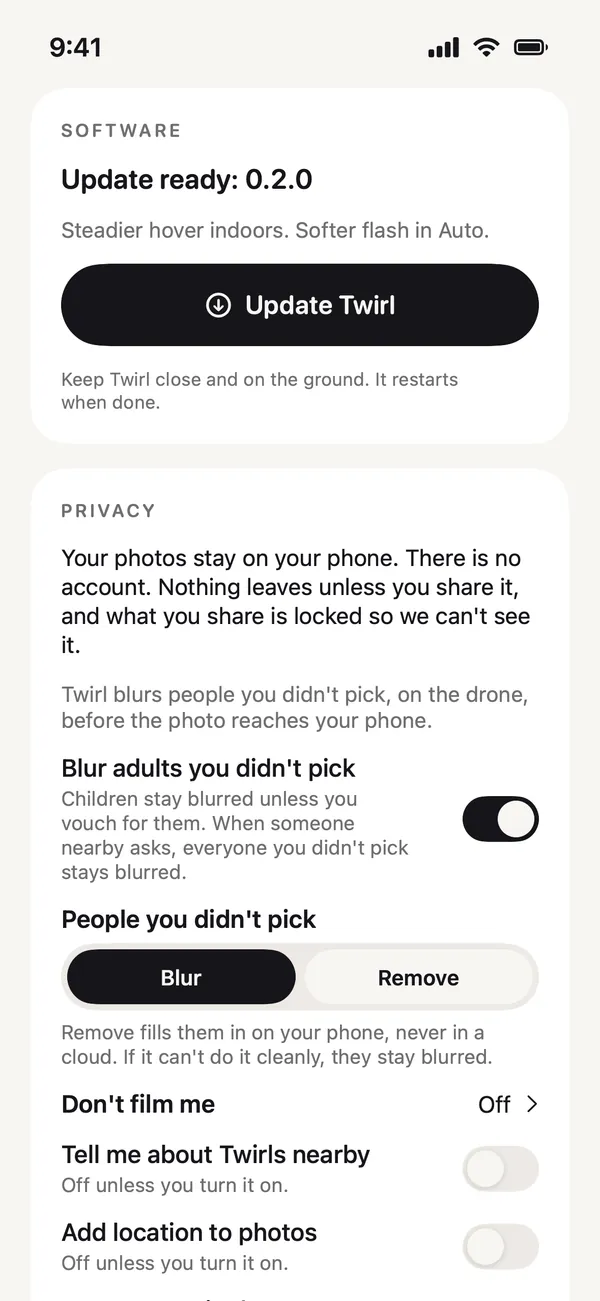
Updates and phones
Updates happen on the ground.
The app brings each update. Twirl does the careful part.
Signed only
Twirl installs only signed updates.
On the ground only
Nothing installs while Twirl is in the air.
A way back
It keeps the old version until the new one starts.
The plan is iPhone first, then Android
Same runs, same buttons, same private gallery.
Where it stands
Coming Soon
Phone in one pocket. Twirl in the other.
Be first to hear when the app and Twirl arrive.